

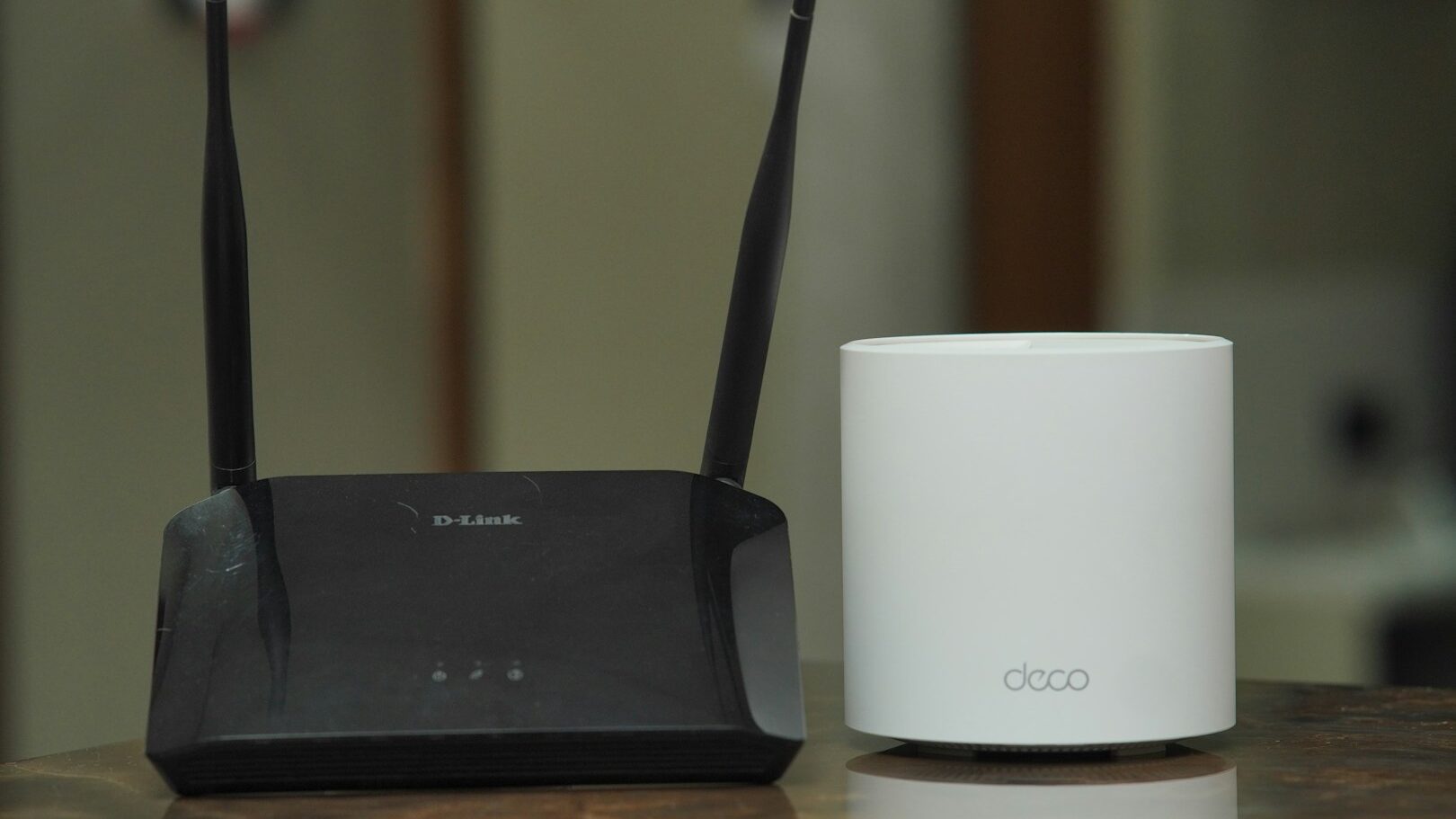
A friend of mine works as an IT technician. And sometimes when I go to him with problems I have at home, he literally grows on me. He solves them in two clicks and laughs at me. And it was the same the other day when I was complaining about my slow internet. He explained to me that a router is not just a colourful box that serves as a decoration of the apartment, but that there are also quite important functions in its settings. But I bet not everyone knew about this one.
When you plug in a new router, you have to set up more than just a Wi-Fi network name and password on your computer. You need to open the router’s settings. Most of my friends don’t do that. But if I told my IT friend, he’d be horrified. He said it’s a basic thing that everyone needs to set up.
QoS features
We often have many devices taking signals from our router at the same time. But if it’s not clear which to give priority to, the router starts to behave unpredictably, and often the network signal is very slow and drops out. This is exactly what happened to me, but I had no idea that QoS was often to blame for these problems.
The acronym stands for Quality of Service. The function is used to enable our home router to distinguish what is most important at any given time. It can then evaluate which processes to prioritise and which can wait. If you have QoS turned off (or, like me, set up incorrectly), it can happen that even a single song download or even sending a message over the Internet overwhelms the router so much that the signal speed is reduced on all devices.
By default, this feature is usually disabled and needs to be reconfigured when you plug in the router. If it is working properly, the router should know that online games and video calls are more important than downloading large amounts of files, for example. Otherwise, however, all activities on the network will interfere and slow each other down.
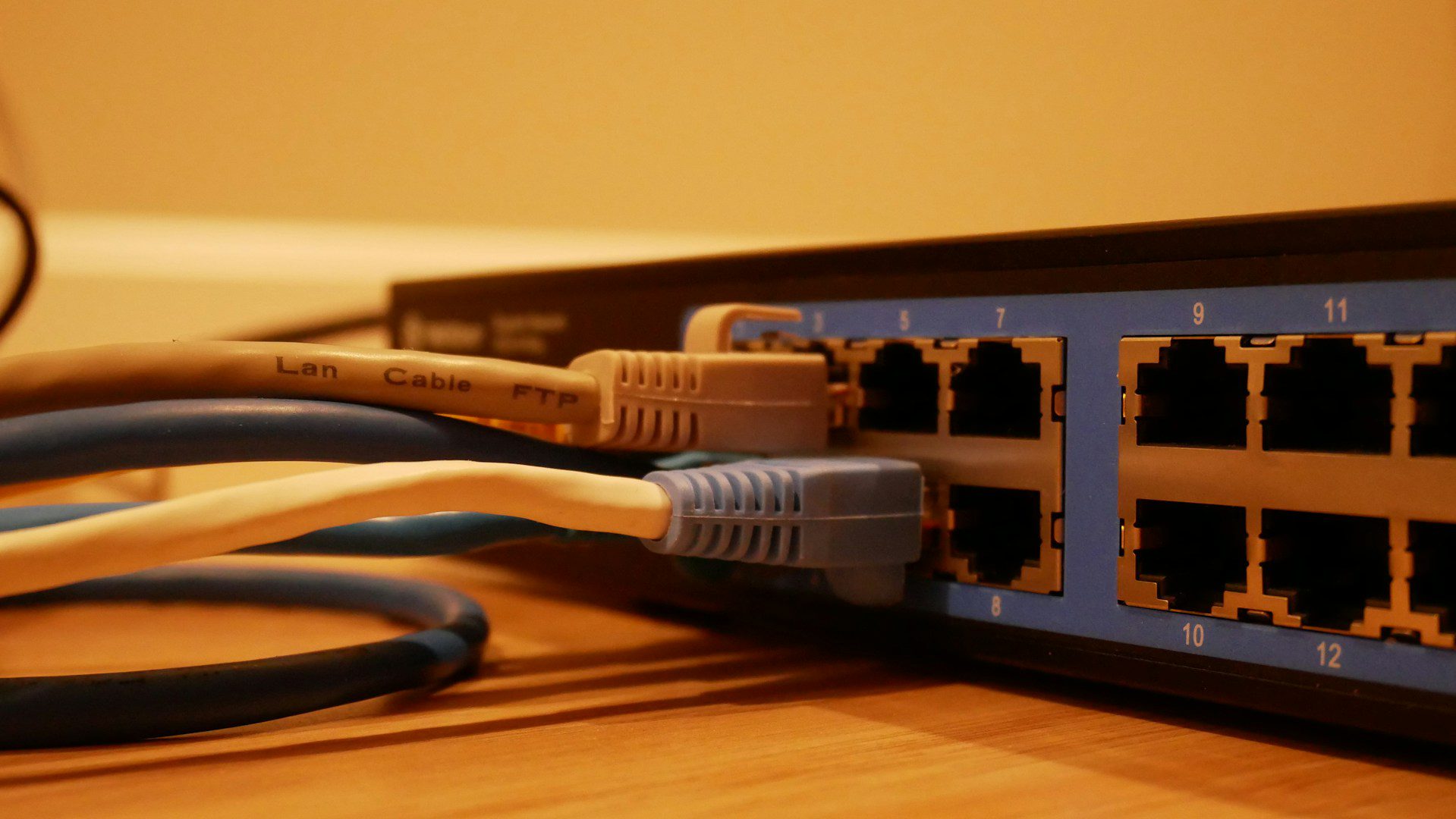 ━━ Slow internet in your home may have nothing to do with a bad connection. Your router settings may be to blame.
( Source: Jonathan / Unsplash+ )
━━ Slow internet in your home may have nothing to do with a bad connection. Your router settings may be to blame.
( Source: Jonathan / Unsplash+ )Before you call for help, check your settings
I’m lucky enough to have a friend who’s into technology. So I usually only embarrass myself with him, not some random technician coming to my house to check on a problem. If you have slow internet at home, first try logging into your router’s admin and checking there to make sure you have QoS turned on, or set your priorities so everything works properly.
Then restart the router and check if anything has changed. If there are further problems, you can seek professional help. It may be that the technician also just clicks twice and fixes everything so quickly that you realize the problem really wasn’t serious. But on the other hand, these workers probably often count on the fact that many Internet users are technically ignorant. So no one is likely to laugh at you, unless, like me, you invite a friend to fix your Wi-Fi, who will tease you for a month.
In doing so, I like to refer to an internet discussion that states that “28% of IT professionals hide the fact that they work in IT so that their friends don’t call them with trivial questions and requests for technical support”.



 L. Novak


 O. Müller
 A. Urban